
Hands Free Settings: How to Set Up Navigation Audio
You're at the top of the steps into a station, phone in one hand, one earbud in, and the voice in your ear has just gone quiet. What you needed was for it to say the lift is to your left before you committed to the stairs. When that happens, the map is rarely the problem. The configuration is.
Hands-free settings are the small set of options that decide what you hear, how early you hear it, how loud it is, and what happens when the words stop coming. People set them once, in a hurry, and never revisit. Ten minutes spent on them before a journey beats any re-planning done mid-walk.
The order below is the order I'd work through on a real journey: the phone before leaving, the car, the concourse, and the moment a prompt fails.
Hands-Free Settings at a Glance
Hands-free settings are the phone and app options that let you hear and act on navigation without holding or looking at the screen. They sit in three places: the navigation or voice section of the app, the phone's audio output settings, and the Accessibility menu on the device. Miss the third and you end up with prompts you can't adjust without tapping, which defeats the purpose.
England's National Travel Survey recorded an average of 594 trips per disabled adult in 2021, against 821 for non-disabled adults, a 28% difference (Disability, accessibility and Blue Badge statistics). A gap that size says less about willingness to travel than about how much of a journey someone can finish without assistance, and these settings are the part of that gap a phone can close.
Eight options do most of the work. The table lists each by what it controls, where to look, and the situation that should make you change it.
| Setting | What it controls | Where to look | Change it when |
|---|---|---|---|
| Voice guidance | Spoken turn-by-turn prompts | Navigation or voice section of app settings | You walk or drive with the screen off |
| Voice volume | Loudness of prompts over traffic | Same section, or phone media volume | Prompts are hard to hear over street noise |
| Prompt timing | How early a turn or exit is announced | Navigation section of app settings | You need more warning at junctions or station exits |
| Audio output | Which device carries prompts | Phone audio output or Bluetooth menu | You switch between earbuds, a car and a speaker |
| Voice control | Spoken commands to start, pause or reroute | Accessibility menu (Voice Control on iPhone, Voice Access on Android) | You prefer speech to touch and it recognises your speech |
| Mono audio and balance | Whether both channels play in each ear | Accessibility audio settings | You hear better in one ear or need both channels in one |
| Captions and on-screen text | Visual version of spoken prompts | Accessibility display or captions settings | You are deaf or hard of hearing, or audio is unreliable |
| Screen reader | Spoken menus, buttons and screen content | Accessibility menu (VoiceOver on iPhone, TalkBack on Android) | You cannot read the screen |
Those eight collapse into three levels of use that people mix up constantly.
No-touch use means voice only, screen off, phone in a pocket. Everything has to arrive as speech, so prompt timing and volume matter more than anything else. Low-touch use means a glance and a single tap: someone who can see the screen but can't hold and operate it while walking. Screen-reader use means VoiceOver or TalkBack is speaking the whole interface, settings screens included, so every option is reachable without sight.
The first setting to check depends on the trip. For a walk, voice guidance on and media volume tested outdoors. For a drive, the destination set while parked and prompts thinned out so you're not tapping at every junction. For a station visit, maps downloaded before you go underground and captions on as the fallback.
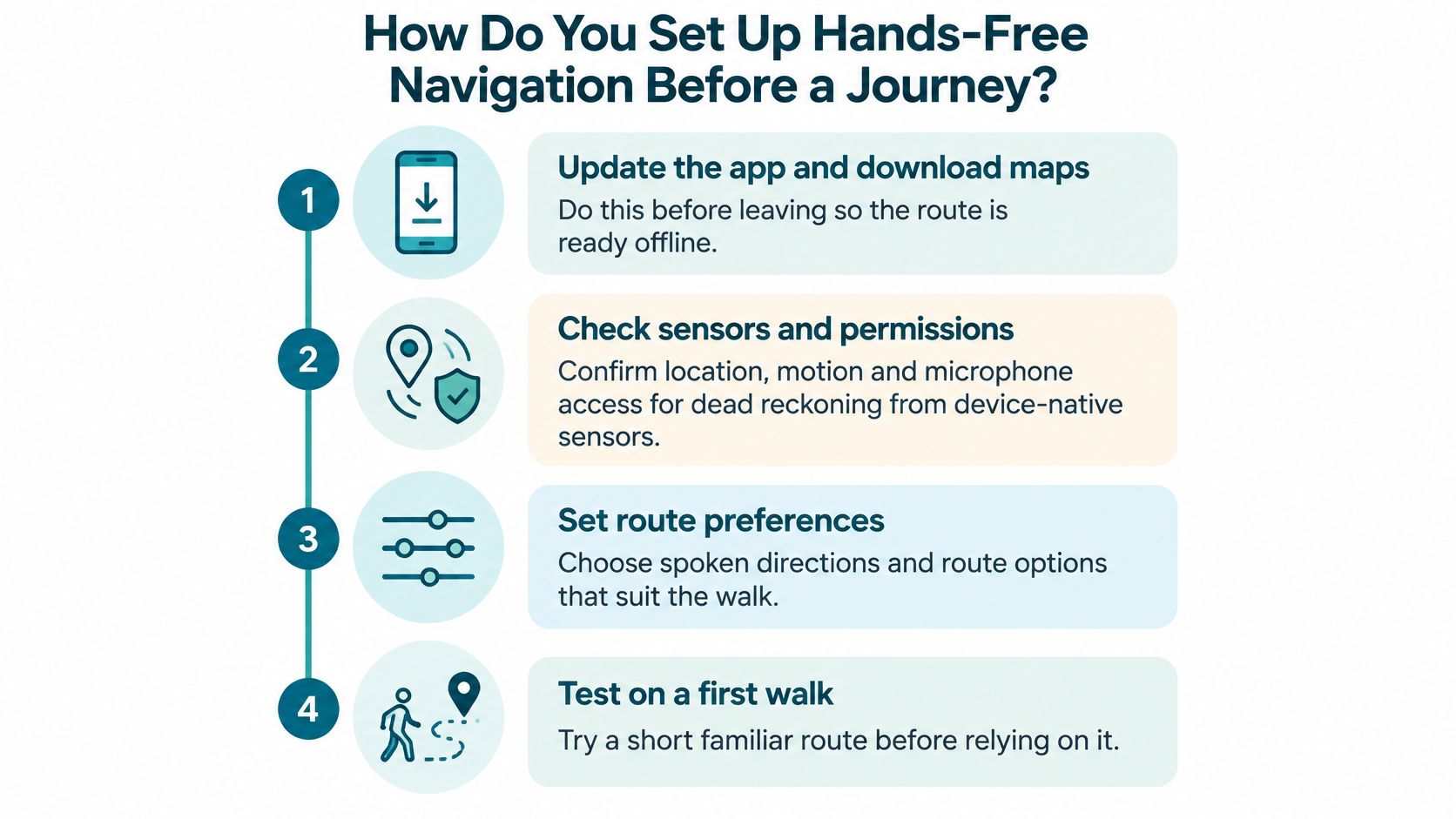
How Do You Set Up Hands-Free Navigation Before a Journey?
Set up the route, audio and permissions before leaving, then test them with the screen off on a familiar walk. Hands-free navigation depends on that configuration, not on whether you can issue a voice command.
According to Ofcom's Audio Report 2025, 54% of UK adults had used a voice assistant in the previous three months, but only 13% had used one in a car. Familiarity with speech controls doesn't establish whether directions will remain audible or continue when the phone is in your pocket.
Follow these eight steps in order.
Before You Leave the House
1. Update the app and download the maps. Finish downloads on home broadband before leaving. Waymap uses the phone's built-in motion sensors to estimate step length and direction of travel, providing guidance by dead reckoning. Once the app and maps for a venue or route are downloaded, it needs no GPS, Bluetooth or mobile signal to give instructions. Check that the download has finished before starting your route.
2. Set voice guidance and volume somewhere loud. Enable spoken directions in the navigation app, then check the media volume while a prompt plays. A level that's comfortable at a desk may be lost beside an idling bus. Test it near a familiar junction, from a safe place, rather than turning it up repeatedly while walking.
3. Choose the audio output while standing still. Connect your wired earbuds, Bluetooth device or phone speaker before starting guidance. Play a prompt through that output so you know where the sound is going. For a car head unit, troubleshoot phone to car connection before departure rather than trying to resolve a silent handover on the move.
4. Pick headphones that leave the street audible. Open-ear and bone-conduction designs leave your ears open to traffic and announcements, but volume still matters. Waymap's terms advise headphones that don't block out your environment and continued reliance on a white cane or service dog where you use one. Lower the guidance volume if it masks surrounding sounds.
5. Allow location and let the app run in the background. Check the app's permissions in your phone's settings. During active navigation, Waymap continues accessing location in the background to provide instructions from the start point to the destination. The explanation of foreground versus background location explains the distinction. Test with the screen off, because a route working on an open screen doesn't establish that your background setup works.
6. Turn captions or on-screen text on as the visual fallback. Check the app's display options and the phone's accessibility settings where applicable. Waymap provides on-screen visual directions as well as audio guidance. If speech recognition doesn't work for you, use the on-screen controls while stopped; voice control needn't be part of your setup.
7. Decide which alerts you want. Review notification permissions separately from navigation audio. Waymap may send push notifications or emails about tube line and subway disruptions, and you can opt out of further messages. During active navigation, it also collects location to provide on-trip support, including alerts about when to get off a bus.
The Test Walk That Proves the Setup
8. Walk a short loop you already know. Put the phone in your pocket with the screen off. Check whether turns are announced early enough to act, whether prompts remain audible over traffic, and whether guidance continues without reopening the app.
Stop before making adjustments. Change the volume or any available prompt-timing setting, then repeat the familiar loop before relying on an unfamiliar route. If audio fails, practise stopping and checking the visual directions rather than continuing while troubleshooting.
The walkthrough below follows the setup sequence.
The rule that decides it: your chosen setup should deliver directions without requiring you to operate the phone while moving.
Before each journey, check maps, volume, output, headphones and fallback, in that order. Keep the fallback usable even when speech is your preferred control.
Is Hands-Free Use Legal While Driving in the UK?
Yes, hands-free use is legal while driving in the UK when it does not take proper attention off the road. Voice commands, Bluetooth headsets, mounted devices and built-in sat-nav systems can all be used. The legal line sits at control and distraction: if the interaction makes the drive less controlled, enforcement can still follow.
The practical risk is that a method can be hands-free and still demand a glance. Many UK drivers admit to using a phone while driving, according to Home Office statistics on self-reported driver behaviour. That matters because the useful question is not whether the phone is held. It is whether the setup works without a second look.
Set that up before the engine starts. Route input belongs in a parked position, because typing an address or checking alternatives needs eyes on the screen. Once moving, the driver should rely on voice prompts and audio guidance, with the device mounted where it can be heard and ignored visually. A phone on the passenger seat invites a pick-up. A mounted phone with clear spoken directions gives the same information without that reach.
Prompt settings deserve the same care. Fewer, earlier announcements at junctions are safer than a stream of updates that tempts a tap. Volume needs a similar trade-off: loud enough to hear over road noise, low enough to leave sirens, cyclists and conversation audible. If a setting needs a look or a touch, pull over and change it there. That is the only reliable recovery point in moving traffic.
Younger drivers have a strong reason to sort this before departure. The RAC's 2024 Report on Motoring, as reported by Road Safety GB, found that 27% of UK drivers had made or received voice calls while driving without hands-free technology, against 55% of drivers under 25. Those figures point to a habit gap: the technology may be present, but the configuration is what keeps it from becoming a distraction.
Rules and enforcement can shift faster than habits, so check a law changes guide for new drivers before assuming what you learned still applies.
A hands-free setup is only safe if it works without a second look at the screen. If it doesn't, pull over before you change it.
Accessibility Options for Blind and Low-Vision Users
Waymap was built first for blind and low-vision users, so the accessibility layer is the default rather than a mode you have to find and switch on. Even so, the settings that matter run in a fixed order: the spoken interface first, then the way prompts arrive, then the route preferences. Configure them in that sequence and each step makes the next one reachable.
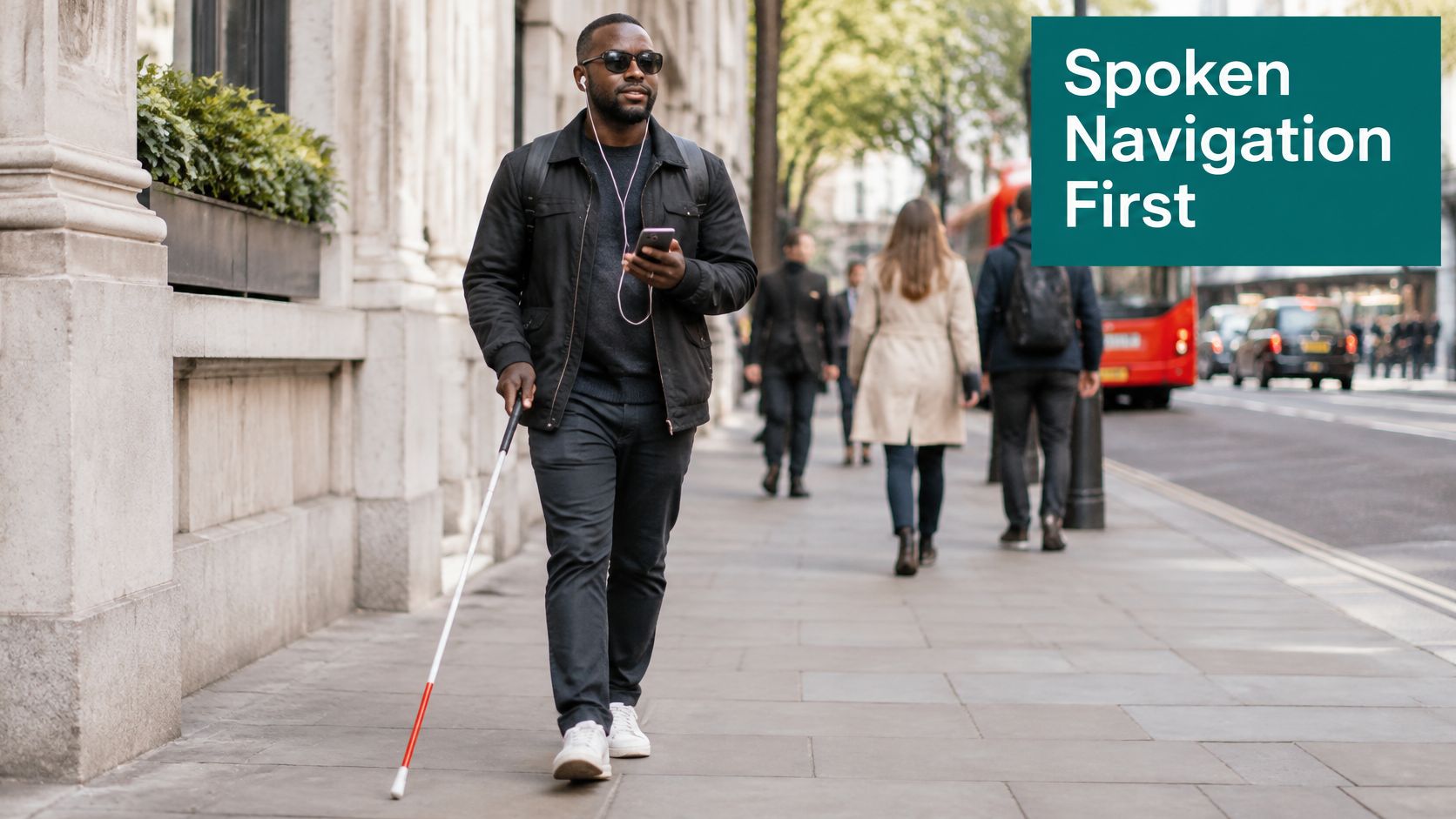
Start with the screen reader, because it's how you reach everything else. VoiceOver on iPhone and TalkBack on Android read menus, buttons and settings screens aloud, which means the whole configuration can be done without sight at all. Turn it on before you go hunting for the voice guidance options. Every later choice in this article assumes you can already hear your own settings menu.
Then decide how prompts arrive. Navigation instructions are available as both on-screen visual directions and audio guidance, and the two can run together: audio works with the phone in a pocket while the visual map stays useful to anyone travelling with you. Waymap's Terms advise wearing headphones that don't block out your environment and continuing to rely on a white cane or service dog, so treat audio as one channel of awareness rather than the only one. Bone-conduction or single-earbud setups leave the other ear free for traffic, platform announcements and people offering help. Our notes on navigation for blind and low-vision users cover the feature set in more detail.
Then set route preferences, which do as much work as the prompts. Step-free routing for wheelchair users and pushchairs, step-level accuracy, personalised step counts and route preferences all change which instructions you hear, not just how they sound. A personalised step count means the app measures distance in your own stride, so "twenty steps" reflects how you walk rather than an average person's gait. Waymap's step-free routing and personalised navigation settings were incorporated into the Austin deployment, so the routing there reflects the same options you set at home.
Context explains why the ordering matters. RNIB reports that over three quarters of blind and partially sighted people feel nervous about travelling to unfamiliar places, and more than two fifths need support during every familiar journey. A setup that announces each decision point before it arrives reduces how often that support is needed, because the prompt reaches you while there is still time to act on it.
The duty sits behind the setting. UK public-sector websites and apps have been covered by the Public Sector Bodies (Websites and Mobile Applications) (No. 2) Accessibility Regulations 2018 since 23 September 2018, and government guidance on equality and accessibility regulations sets the WCAG 2.2 AA standard and ties it to the Equality Act 2010 duty to make reasonable adjustments. Audio guidance belongs to accessible service design, not to an extras menu, which is why venues and transport operators increasingly build it in rather than bolting it on.
Some travellers use a second audio channel for a different job. Rhythmic cueing can steady a gait, and if you use a cueing device for Parkinson's gait support, decide which app owns the earbuds before you leave, because two audio sources competing is worse than either one alone. I'd give navigation priority on the outward journey and hand the channel back once you know the route.
A setup is working when you can repeat a prompt, control the pace and reach the decision point without asking for help at each step.
Which Settings Work Best in Stations, Venues and Quiet Streets
A concourse and a residential street make opposite demands on the same phone. The environment decides which prompt has to come earlier, and the right configuration changes with each setting rather than staying fixed for the whole journey.
| Environment | Volume | Prompt timing | Fallback |
|---|---|---|---|
| Busy station concourse | Louder, tested over announcements | Earlier, before each junction | Screen text and a known stop point |
| Underground station or tunnel | Set once before entry | At every change of level | Maps downloaded before you go, plus captions |
| Shopping centre or stadium | Medium, one ear kept clear | At each entrance, lift and exit | Staff help point or step-free route |
| Quiet residential street | Lower, to avoid disturbing others | Standard prompts | Headphone choice only |
| Driving | Low enough to hear the road | Fewer and earlier | Pull over before changing anything |
Noise sets volume. A concourse full of announcements swallows a level that works outdoors, so test against the noise rather than in a quiet corner of it. Layout sets timing: underground stations change level at every stair, lift and platform, so prompts need to arrive before each change instead of at the next junction. One ear stays clear regardless. Waymap's own terms advise headphones that don't block out the environment and continued use of a white cane or service dog, because audio guidance supplements spatial awareness rather than replacing it.
Information gaps set the fallback. The Inclusive Transport Strategy records that only 47% of local-service buses provided both audible and visible information, even as 98% of buses complied with the Public Service Vehicle Accessibility Regulations in 2016/17. A compliant vehicle and usable information are different achievements, and spoken prompts cover the distance between them. Demand for assistance with that gap keeps rising across the rail network too.
The gap is rarely the vehicle itself. More than one in three blind and partially sighted people never use public transport (RNIB's Voice of the Customer report on travel and transport), and what stops them is finding the entrance, the platform, the lift and the exit inside an unfamiliar building. Those are exactly the decision points a well-timed prompt has to reach early.
For venue teams: if a wayfinding system needs re-surveying after every layout change, it will fall out of date exactly when it matters most.
That operational friction decides budgets. Physical wayfinding hardware has to be installed, maintained and re-surveyed each time a concourse is reconfigured, which is hard to justify in stations and shopping centres where works are frequent. Waymap's sensor-fusion approach runs on motion sensors already built into standard smartphones plus digital maps, with no GPS, Wi-Fi positioning, Bluetooth beacons or fixed infrastructure to maintain, and it automatically reroutes around works or faults in escalators, lifts and areas as they happen. At Bullring and Grand Central, no additional hardware was installed at all: step-free routing, guidance to accessible toilets, and curated food and drink options are built in without a separate accessibility mode or special configuration. Our guidance on how navigation instructions work explains the prompt logic in more detail.
What to Do When Voice Commands and Prompts Fail
The most common failure isn't misheard speech. It's prompts that stop the moment the screen locks, which usually means a permission is restricted rather than the app being broken.
| Symptom | Likely cause | Fix |
|---|---|---|
| Prompts stop when the screen locks | Background location or app permission is restricted | Allow location during navigation and keep the app running in the background |
| Prompts stop in a tunnel or underground | Maps not downloaded before the journey | Download the route maps before you leave, then test with the signal off |
| Voice commands misheard | Background noise, accent, speech differences or a covered microphone | Move somewhere quieter, repeat or rephrase, and switch to on-screen or screen-reader controls |
| Prompts too quiet to hear | Media volume low or audio sent to the wrong output | Raise media volume and check the output device before you walk |
| Voice control ignores your speech | Speech impairment, anxiety or a need for non-verbal input | Use screen-reader gestures, on-screen buttons or ask for staff help |
Two of those rows explain most support tickets. Waymap keeps accessing your location while it's in the background during active navigation, so a restricted permission stops guidance rather than slowing it. Once the app and the maps for a venue or route are downloaded, it needs no GPS, Bluetooth or mobile signal, which means silence in a tunnel almost always means the download didn't finish. Check both settings before blaming the app itself, and walk through the steps in the troubleshooting guide for navigation problems if a restart doesn't restore the prompts.
Voice recognition is the weaker link across the whole category, not just in navigation. Anyone who has repeated a destination into a phone at a busy concourse knows the pattern: the louder the environment, the worse the recognition, and the more you need the command to work, the less it does. Rephrasing once is worth trying. Repeating yourself a third time is not.
That matters because voice fails hardest for the people who need hands-free most. Someone with a speech impairment, a strong accent, background anxiety or a preference for non-verbal input gets the fewest successful recognitions precisely when they can't fall back on tapping a screen. Multimodal alternatives, including physical accessibility controls, vibration, repeatable audio, visual confirmation and human assistance, aren't extras for this group. They're the working route.
Voice is one way into the app, not the only way out of a problem.
If the only input method is speech, removing the touchscreen can make a journey harder, not easier. Every setup needs a second way to act, and that second way should be configured before the first one fails. In practice that means enabling the screen reader or memorising two or three on-screen gestures at home, on wifi, with no journey at stake. A fallback you configure for the first time while standing lost on a platform is not a fallback.
Frequently Asked Questions About Hands-Free Settings
Where are hands-free settings on an iPhone?
Hands-free setup starts inside the navigation app. Set spoken directions, volume and prompt timing there first. Then open the iPhone Accessibility menu for Voice Control, VoiceOver and captions if you want speech control or spoken interface feedback. Changing app prompts before enabling screen reading makes the journey easier to follow.
Where are hands-free settings on Android?
Set voice guidance and volume in the navigation app before changing Android Accessibility settings. Voice Access and TalkBack live in the Accessibility menu. Configure the app first so directions are clear before the interface becomes fully spoken.
Is hands-free navigation legal while driving in the UK?
Hands-free navigation can be used while driving, with voice commands, Bluetooth headsets, mounted devices and built-in sat-nav. The driver must remain in proper control of the vehicle. Any setup that requires looking at a screen while moving undermines that requirement, so adjust routes, prompts and volume while parked.
Can Waymap work without GPS or a mobile signal?
Yes. Once the app and maps for the venue or route are downloaded, Waymap uses smartphone sensors and AI to estimate step length and direction, then gives turn-by-turn guidance without GPS, Bluetooth or mobile signal. A tunnel only creates a problem when the download has not finished.
What should I do when voice commands don't understand me?
Use a non-voice route to the same action: screen-reader gestures, on-screen buttons or staff help. Voice recognition can fail for people with speech impairment, strong accents or noisy surroundings, so repeating the same command rarely fixes the problem. Waymap also provides visual directions alongside audio guidance, and its screen reader compatibility notes cover gestures that replace a tap.
Does Waymap support step-free routing?
Yes. Waymap offers step-free routing for wheelchair users and pushchairs, alongside step-level accuracy, personalised step counts and route preferences. At Bullring and Grand Central, step-free routing, guidance to accessible toilets and food and drink options are built in without a separate accessibility mode.
Do I need to keep the screen on?
No. Waymap gives full audio turn-by-turn navigation, and active navigation can continue while the app is in the background by accessing location to provide continuous instructions from the start place to the destination. Keep the route maps downloaded and location access enabled before setting off.
Waymap gives spoken, step-by-step guidance that keeps working with the phone in your pocket, indoors, outdoors and underground, without GPS, Wi-Fi or installed hardware. It uses the motion, direction and elevation sensors already built into standard smartphones, so venues do not need Bluetooth beacons or fixed infrastructure for navigation. If you run a station, campus, shopping centre or hospital and want navigation every visitor can use without extra equipment or a separate accessibility mode, Waymap is where to start. Take the settings above on one test walk first, then adjust volume, prompt timing and fallback input before relying on them for a full journey.
