
Fix Waymap Issues: Your 2026 Troubleshooting Guide
Meta description: A practical troubleshooting guide from the Waymap deployment and support team. Learn how to diagnose app issues, mapping drift, offline navigation faults, and when to escalate with the right technical detail.
A venue manager usually finds navigation issues at the worst possible moment. A shopper can't reach a specific unit in Westfield London. A patient visitor takes a wrong turn in a hospital corridor. A transport passenger loses confidence just before a platform change. In each case, the complaint sounds simple, but the cause rarely is.
This troubleshooting guide is the working playbook our deployment and support team uses to triage problems quickly and fix the right layer first. That matters because indoor navigation failures don't all come from the same source. Some come from device permissions. Some come from map changes on site. Some come from how a handset's motion sensors are behaving in a real building. If you treat all of them as “the app is broken”, you waste time and keep visitors waiting.
Waymap was built first for blind and low-vision users, and that standard changes how we support deployments. Dr Tom Pey, Waymap's founder and a blind accessibility technologist, has shaped that expectation from the start. If directions aren't clear, stable, and dependable in live environments, they're not good enough.
The practical aim here is simple. Give venue managers, estates teams, IT staff, and operations leads a step-by-step troubleshooting guide they can use before they raise a ticket, while also showing them when a local fix is the wrong move and escalation is the right one.
Your Definitive Waymap Troubleshooting Guide
If you're reading this during a live issue, start with the symptom, not the assumption. The most common mistake we see is a site team deciding too early that the problem sits with the platform, when the actual fault is local and fixable in minutes.
At venue level, the pattern is familiar. A route works on one handset but not another. Audio prompts arrive late in a noisy concourse. A newly reconfigured corridor still appears open in the map. A journey starts correctly and then drifts after a turn. Those are four different failure modes, and they need four different responses.
Start with the operating context
A useful troubleshooting guide always asks three questions first:
- What exactly failed: Was it route calculation, spoken guidance, user position, or app responsiveness?
- Where did it fail: The exact entrance, corridor, level, platform approach, or unit threshold matters.
- When did it begin: After a fit-out, a floor plan update, a handset OS update, or a local operational change?
That short discipline prevents vague reports like “navigation inaccurate on Level 2”, which usually aren't specific enough to diagnose.
Practical rule: If you can't describe the failure in one sentence with a location and a user action, you don't yet have a usable incident report.
Use this as an internal triage framework
The support process we use is direct. Check fundamentals first. Diagnose in-app behaviour second. Separate map discrepancies from motion-tracking discrepancies third. Then decide whether the issue belongs with venue operations, the deployment team, or support engineering.
That's the inherent value of a good technical troubleshooting guide. It doesn't just list possible faults. It tells you which layer to test next so you don't burn an hour on the wrong one.
What to Check Before Raising a Ticket
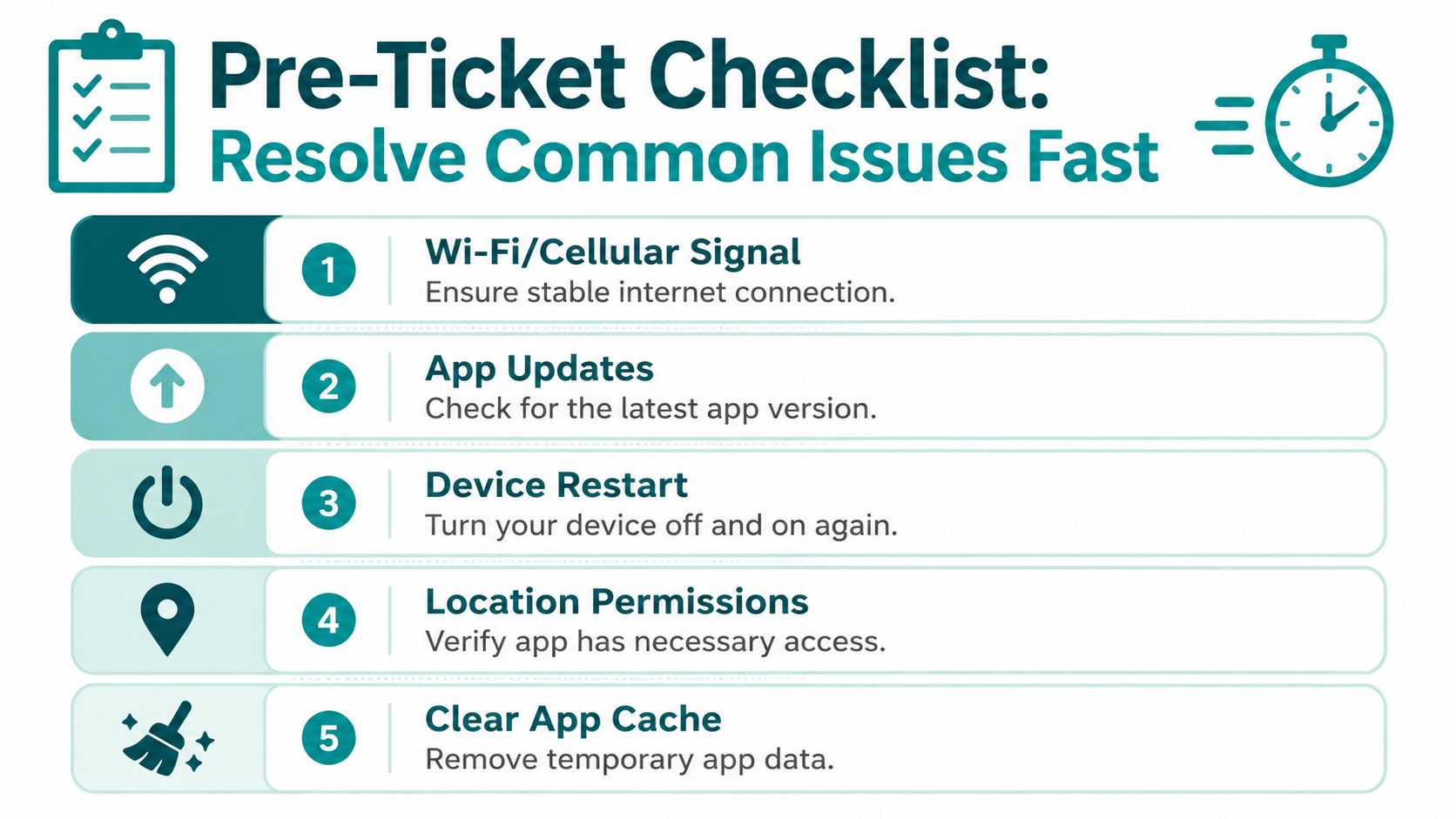
Most avoidable support tickets fail on basics. Before anyone escalates, run a short local check on the device, the app, and the user's immediate environment. These are the fast checks that often clear an issue without any engineering input.
Check the handset, not just the app
If a user says navigation is wrong, start with the phone in their hand.
- Restart the device: Temporary sensor lockups, audio routing glitches, and stale app state often clear after a restart.
- Confirm app version: Mixed app versions on site create false comparisons. One user may be testing a newer build with updated behaviour while another is not.
- Review permissions: Location and motion access need to be enabled as intended on the device. If permissions are restricted, route execution can degrade or fail.
- Check connectivity if the workflow needs it: Even though indoor navigation doesn't depend on GPS, a live deployment may still use network access for account state, content refresh, or map retrieval depending on setup.
- Clear temporary app data if behaviour is odd: If the interface becomes sticky or a route selection does not refresh correctly, stale local data may be involved.
For teams managing battery concerns during testing, this matters because staff often disable key phone features in the name of conservation. Our note on Bluetooth and battery drain in mobile deployments helps teams avoid over-correcting and introducing new faults.
Check what changed on site
The second pass is operational, not technical. Ask the venue team whether anything physical changed.
A route that worked last week can fail this week because of a temporary hoarding line, a closed stair, a relocated reception desk, or a revised access policy at a doorway. Support teams can't see that remotely unless the site tells us.
Use this short venue-side checklist:
- Access routes: Has any public path been blocked, diverted, or narrowed?
- Temporary works: Are there event layouts, contractors, barriers, or pop-up fixtures in place?
- Entrance conditions: Is the user starting from the same point the journey was designed around?
- Audio environment: Is excessive background noise masking spoken instructions rather than indicating a navigation fault?
Check whether the issue is repeatable
One report is a clue. Two consistent reproductions on the same path are evidence.
| What you observe | What it usually means | What to do next |
|---|---|---|
| One user affected on one phone | Device-specific problem | Recheck permissions, restart, and version |
| Multiple users affected at one location | Site or map issue | Test the route from the same start point |
| Failure appears after a layout change | Operational mismatch | Validate current floor plan against live conditions |
A ticket raised without a repeatable path, handset details, and a precise starting point usually comes back for clarification. That adds delay, not progress.
How to Diagnose Common In-App Issues
Once the basics are confirmed, move to behaviour. The app opens, but something about the experience isn't right. That's a different class of problem from a missing permission or a stale install.

Audio prompts feel late or too fragmented
Symptom: the user says the instructions arrive too often, too narrowly, or later than expected.
Likely cause: the guidance may be behaving as designed, but the user or venue team is expecting chunked directions rather than single-action steps. That distinction matters. W3C research on cognitive accessibility says directions should be presented in the smallest steps possible, with each direction corresponding to a single action such as “turn left” or “continue straight”, and route changes should not happen without explicit user approval.
Solution:
- Test in a quieter area first: Confirm whether the issue is timing or audibility.
- Ask what the user expected to hear: If they expected a long instruction sequence, they may be misreading concise prompts as incomplete prompts.
- Check audio output routing: Earbuds, hearing devices, or phone speaker routing can change perceived timing.
Route won't calculate or won't start properly
Symptom: destination selection works, but the route does not begin cleanly.
Likely cause: the app may not have a reliable starting context, the destination may have changed in the live venue configuration, or the local device state may need resetting.
Try this sequence:
- Return to the intended start point and retry the same journey.
- Confirm the destination exists as currently named in the venue configuration.
- Close and reopen the app to clear a stuck route state.
- Test a different destination nearby to determine whether the problem is route-wide or destination-specific.
If your technical teams need more background on how handset motion data is interpreted, our explanation of the sensor fusion algorithm used in indoor navigation gives useful context for support conversations.
The app feels unresponsive during a journey
Symptom: taps lag, voice guidance appears delayed, or the journey seems to pause.
Likely cause: this can come from local device load, old cached state, or a user trying to force rapid route changes while moving.
The fix is usually operational discipline more than deep technical intervention.
- Stop moving and retry the action: Continuous movement during rapid destination changes can muddy what the user thinks they're seeing.
- Reduce background load: Close other apps that may be competing for handset resources.
- Repeat the same task in one controlled test: Don't change destination, floor, and starting point all at once.
The best diagnostic test is boring. Same device, same start point, same destination, one controlled run.
Instructions seem correct, but confidence drops
Sometimes the issue is not strict failure. It's hesitation. The user slows down, questions the next move, and abandons the route.
That usually points to one of two things. Either the local environment has changed just enough to undermine confidence, or the route logic is still valid but the venue's physical cues now conflict with what the user hears. In practice, those incidents often need a map and site review rather than another round of app reinstalling.
Resolving Mapping and Accuracy Discrepancies
A venue manager reports that users are being sent toward a corridor that was closed during a refit. An IT lead reports "drift" on the same floor. Those may sound like one problem. In practice, they sit in different parts of the support playbook, and treating them as the same thing slows resolution.

Separate map error from movement error
Start by deciding whether the fault is in the digital representation of the venue or in how the journey is being tracked.
A map discrepancy usually presents as a confident but wrong instruction. The route heads toward a doorway that no longer exists, crosses space that is now blocked, or treats a reconfigured public area as if nothing changed. A movement discrepancy presents differently. The route itself still makes sense, but the reported user position gradually shifts away from reality during the walk.
That distinction matters because the fix, the owner, and the evidence you need are different.
| Symptom | More likely cause | Best first action |
|---|---|---|
| Route sends users into blocked or impossible space | Map discrepancy | Validate floor plan against live venue condition |
| User position drifts over time while path logic stays plausible | Motion-tracking discrepancy | Re-test walking pattern and start calibration |
| Problem appears after refurb or reconfiguration | Map or venue state issue | Review updated layout ownership and release process |
In support, we see the same pattern repeatedly. Floor plan changes, access rule changes, and missed handover between estates and digital teams create a large share of avoidable incidents. If nobody owns map updates and review cycles, the public becomes the test team. That is also where compliance risk starts to creep in. If an accessible route is shown as available when it is not, the issue is no longer just technical. It affects the venue's duty to provide reliable access information under the Equality Act 2010.
Understand what drift means in Waymap
Waymap does not depend on constant beacon, Wi-Fi, or GPS correction to keep finding the user. It uses dead reckoning from device-native sensors and reconciles that movement against the mapped environment. Support teams need to diagnose that mechanism directly.
"Drift" is usually a tracking baseline problem until proven otherwise. The starting point may have been imprecise. The handset may have been carried one way at the start and another way halfway through the route. The user may have made repeated avoidance movements around temporary obstacles, then judged the final position error as a mapping fault.
I do not treat a single uncontrolled walk as evidence. I want one repeatable test from the same origin, with the phone carried consistently and the first confidence break recorded at the point it appears, not ten metres later.
Field note: If the route geometry looks sensible but the blue position moves off line over time, test the movement pattern before requesting a remap.
Re-check the venue, not just the app
Accuracy issues are often created on site and discovered in software.
Check the live estate against the published map:
- Recent works: partition walls, hoardings, queue systems, fit-outs, or relocated entrances
- Access changes: doors now locked, exit-only, badge-controlled, or assigned to staff use
- Vertical circulation: lift outages, staircase closures, one-way flows, or diverted step-free routes
- Destination changes: receptions moved, clinic names changed, units renumbered, platforms reassigned
These checks matter more than many teams expect. A route can be logically correct inside the old geometry and still fail badly for a user standing in the current building.
Teams comparing indoor positioning approaches should also understand the maintenance trade-off. Systems that depend heavily on installed infrastructure add another failure surface. Our explanation of Bluetooth access points and indoor positioning trade-offs gives the technical background if you need to decide whether the problem is tied to venue infrastructure or to venue data.
After the physical check, run the route again from the exact reported origin. Use the same doorway, gate line, landing, or entrance threshold. "Close enough" produces noisy evidence and weak tickets.
A short explainer is often enough to align site teams before a re-test:
Recalibrate by process
Good triage is procedural. Guesswork produces long email threads and poor fixes.
For a recalibration run, use this sequence:
- Set a known start point with an unambiguous physical reference.
- Keep handset handling consistent for the full test.
- Walk at a normal pace and avoid artificial stop-start behaviour.
- Record the first confidence break as soon as it appears.
- Repeat the same run once under matching conditions.
- Log what changed in the venue since the last known-good journey, if anything.
That is the standard support evidence pack we ask partners for because it lets us separate dead reckoning error, map error, and venue change quickly. "Accuracy issue on Level 1" is not actionable. A repeatable route, a precise break point, and confirmation of current site conditions usually is.
Troubleshooting in Offline and Underground Environments
Underground and offline environments expose weak design decisions quickly. If a navigation product expects a signal refresh to stay trustworthy, deep stations, basements, sub-surface retail, and enclosed interchange spaces will reveal that limit almost immediately.
That's why support in these environments starts with one question. Did the journey begin from a reliable starting point?
Focus on entry and exit transitions
Most failures underground don't begin in the middle of the route. They begin at the handover between one context and another. Street to station. Concourse to platform approach. Mall entrance to lower ground level. If the user starts from the wrong point, the rest of the journey can look wrong even when the path logic itself is sound.
For venue teams, the operational checks are specific:
- Confirm the exact entry point used by the user
- Check whether that entrance has changed function or public access conditions
- Verify that staff are testing from the same threshold the public uses
- Avoid approximating the start location from memory
That's one reason signal-dependent assumptions create support noise. Teams often expect GPS-like recovery indoors, even though GPS does not reliably work indoors, especially in underground environments.
Offline reliability is a design choice
Reliable underground performance doesn't come from luck. It comes from choosing a navigation model that doesn't need installed hardware or satellite visibility to keep the user oriented.
For transport operators, that matters because hardware across high-footfall, high-change environments creates a maintenance burden. Stations are reconfigured. Access routes change during engineering works. Temporary barriers appear. Any model that depends on a dense physical layer adds another thing operations teams must maintain.
This is also moving from a service decision into a compliance decision. The European Accessibility Act reached full implementation in June 2025, with enforcement scaling through 2026, making accessible indoor navigation a legal prerequisite for large-scale facilities in the EU, including transport services, according to Navigine's summary of the European Accessibility Act timeline. If your navigation fails in the places users need it most, that's no longer a minor product gap.
Underground support works best when operators treat starting-point certainty as part of accessibility, not as a minor technical preference.
What support teams should log underground
When an issue appears in a station, tunnel-linked venue, or basement environment, don't send a generic “offline failure” note. Record:
- The exact entrance or platform access point
- Whether the user began above ground or below ground
- What happened at the first transition
- Whether the journey degraded immediately or only after several turns
That level of detail is what separates a solvable support incident from a vague complaint.
When to Escalate an Issue to Waymap Support
A station manager has run the same journey three times. The route fails at the same corridor junction. A second handset shows the same behaviour. At that point, more local testing rarely adds value. It delays the fix and slows down any map, calibration, or app-side investigation that Waymap support can start immediately.
Escalate when the issue is reproducible, tied to a specific place or route, and still present after controlled checks on site. Prioritise escalation when multiple users report the same symptom, or when one user can trigger the same failure from the same start point more than once. Those patterns usually point to a route, map-state, or positioning issue rather than user handling.
Escalate with evidence engineering can use
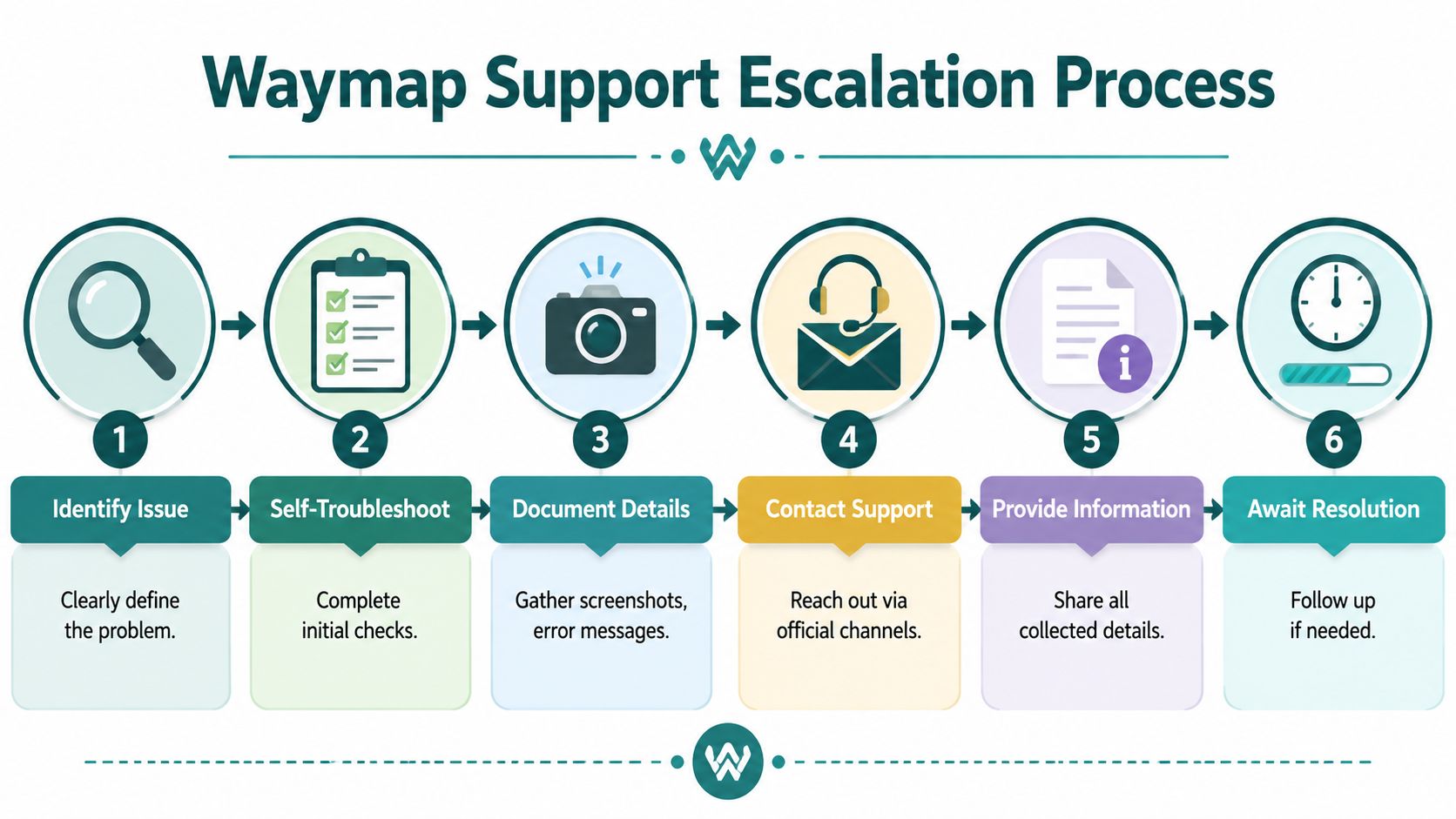
“Navigation broken near lifts” is not enough. A useful ticket ties the symptom to a precise technical context: where drift began, whether route guidance was wrong or only late, whether the issue followed a turn, and whether the handset recovered. That distinction matters because Waymap support triages dead reckoning drift, start-point uncertainty, map mismatch, and audio or UI defects differently.
Include:
- Device model and operating system version
- App version
- Exact venue name and exact failure location
- Start point and destination
- Time of test
- What the user expected to happen
- What happened instead
- Whether the issue is repeatable
- Screenshots or screen recordings if available
- Any recent venue changes that may be relevant
- Whether the problem affects accessibility-critical routes, such as entrances, lifts, toilets, platforms, or assistance points
If your team needs a clearer operating model around incident capture, our guidance on end-user support for venue deployments gives the venue-side process we expect before and during escalation.
Write the ticket so support can reproduce the failure
Use a simple standard. A Waymap engineer who has never visited the venue should be able to recreate the issue from the ticket alone.
That means writing the sequence, not the conclusion.
| Weak escalation | Strong escalation |
|---|---|
| “App inaccurate near reception” | “Route from north entrance to main reception drifts after the right turn beside the pharmacy corridor on iPhone 13 running iOS 17.5. Repeated twice.” |
| “User couldn't get to platform” | “Journey from ticket hall entrance to eastbound platform failed to initialise from the public gate line start point. Same result on second test.” |
| “Audio delayed” | “Step prompts played, but station PA masked audio near the escalator bank. Route line and turn logic remained correct.” |
Those details cut out the usual first round of follow-up questions and let support decide whether to review logs, map data, route logic, or deployment configuration.
Escalate ownership gaps early
Some tickets stall because the technical fault is only half the issue. The other half is venue ownership.
If nobody can confirm whether a public path changed, whether a lift is out of service, or whether destination names were updated after a refurbishment, support can diagnose the symptom but cannot close the incident. Name one venue contact for physical and operational validation, and one for handset or app testing. In practice, that split prevents tickets from bouncing between IT, estates, operations, and accessibility leads.
This matters beyond convenience. If a reported issue affects an accessibility-critical journey and the venue cannot verify or correct the route quickly, the risk is operational and compliance-related, not just technical.
Support closes incidents faster when the venue identifies one owner for map state and one owner for device testing.
Use a disciplined triage sequence before and during escalation
Ad hoc email chains create noise. A fixed sequence produces usable evidence and speeds up resolution.
Use this order:
- Confirm the issue under controlled conditions
- Repeat the same route from the same start point
- Check whether the fault is device-specific, route-specific, or map-specific
- Capture clear evidence
- Name the venue-side owner who can validate the physical environment
- Escalate with a precise incident narrative
That is the same framework our support team uses internally. It keeps local teams focused on facts, not theories, and it gives Waymap the fastest path to deciding whether the next action is map correction, deployment review, or engineering investigation.
Frequently Asked Questions About Waymap Troubleshooting
What is the fastest way to use this troubleshooting guide during a live issue
Start with the exact symptom and location. Then confirm the device state, repeat the journey from the same start point, and decide whether the fault looks device-specific, map-specific, or route-specific before escalating.
Why does a route fail after a venue refurbishment
Refurbishments often change the physical reality faster than the digital map is updated. New walls, moved entrances, temporary barriers, and revised public paths can all make a previously valid route look wrong.
How should teams handle temporary event layouts
Treat temporary layouts as operational changes that need named ownership. If a route crosses event barriers, queue lanes, pop-up retail, or contractor zones, test the public path in its live condition and update the venue-side information promptly.
Does walking style affect indoor navigation behaviour
Yes. Handset handling and walking behaviour can affect how movement is interpreted during a journey. If support needs a clean test, use a known start point, hold the phone consistently, and repeat the same route once under normal walking conditions.
When should a venue stop local testing and escalate
Escalate when the issue is repeatable and specific. If the same route fails from the same start point after basic checks, and especially if more than one user can reproduce it, local testing has probably done its job.
Is Waymap the same as a beacon-based system
No. Waymap uses device-native motion sensors and detailed maps rather than relying on installed beacons, Wi-Fi, or GPS for indoor positioning, which is why the troubleshooting process focuses so heavily on start-point accuracy, live venue conditions, and movement behaviour.
If you're running a transport network, shopping centre, campus, hospital, or public venue and need a more resilient wayfinding operation, speak to Waymap about deployment support, accessibility-focused navigation, and practical troubleshooting workflows for indoor, outdoor, and underground environments.
